

Your First Book Starts With a Plan: How to Become a Children’s Book Author
The answer sits at the top. Everything below shows you how to reach it. Most advice makes you read for ten minutes before you learn
Your EPUB is done. Now you want to see it on a real Kindle screen.
Maybe you are a first-time author checking your layout. Maybe you have ten books behind you and just need a quick proof. Either way, the goal is the same. You want that file on your device, fast.
The good news? Amazon now takes EPUB files through its Send to Kindle tool. You do not need extra software. This guide shows three simple ways to send EPUB to Kindle, plus fixes for the snags people hit most.
Not on its own. A Kindle does not read a raw EPUB the way other e-readers do. Instead, Amazon changes the file after you upload it. That step is called EPUB to Kindle conversion, and it runs by itself. You send the file and wait a minute or two.
EPUB is a flexible format. The text reflows to fit any screen, and readers can pick their own font size. That is why so many publishers use it.
But flexible is not the same as flawless. Before transferring your book, explore Amazon’s ebook manuscript formatting guide. It explains how to prepare chapter titles, spacing, and images for publishing.
This is the quickest route, and it suits most people. You install nothing.
Amazon will process the file. Give it a short while, then sync your Kindle and check your library.
The web uploader takes files up to 200 MB. That is plenty of room for a picture book or a title packed with photos. If you are wondering how to add EPUB to Kindle with the fewest steps, start here.
One warning. A file that uploads fine can still look wrong. Always open the book and flip through a few chapters.
Email works well when the file is already in your inbox. Maybe your editor or designer just sent it. To send EPUB to Kindle via email, follow three steps.
Step 1: Find Your Kindle Email Address. Sign in to Amazon and open Manage Your Content and Devices. Look under Devices and select your Kindle. You will see a Send to Kindle address that ends in @kindle.com. Copy it with care.
Step 2: Approve your sender. Go to Preferences, then Personal Document Settings. Add your own email address to the Approved Personal Document Email List. Amazon rejects mail from any address that is not on that list.
Step 3: Send the message. Attach the EPUB and address the email to your Kindle. You can leave the subject and body empty. Amazon may send a short verification email the first time.
Confirm it once, and later sends go through easily.
Keep two limits in mind. You can attach up to 25 files per email, but the total size must stay at 50 MB or less. For bigger files, use the web uploader.
Email is also handy if you want to know how to transfer EPUB to Kindle from a phone. Any mail app can attach the file in a few taps.
If you test files often, this route saves clicks.
On your phone: Find the EPUB in your Files app or in an email. Tap Share, then pick Kindle. Follow the prompts, and the book lands in your library.
On your computer: Install the Send to Kindle desktop app and sign in. Then drag your EPUB into the window and press Send.
The app route has a 50 MB limit, so large files still belong on the web uploader. Steps also differ a little between iPhone and Android. If Kindle is missing from your share menu, update the app first. If that fails, switch to Method 1.
Method | Best for | Size limit |
Web uploader | Fast sends and large files | 200 MB |
Files already in your inbox | 50 MB total | |
App or desktop tool | Frequent proofing | 50 MB |
First-time authors will find the web uploader the easiest. Seasoned authors who proofread a new draft every week may prefer the app. Pick the one that fits how you work.
Sometimes the upload works, but the book never appears. Run through this short list.
Renaming a damaged file will not fix it. The file itself needs repair.
Usually, no. Amazon handles EPUB to Kindle conversion for you when you use its own tools. A program like Calibre only helps if you must repair a file or fix its structure.
Avoid turning your EPUB into the older MOBI format. It adds a step and gains you nothing.
One more point for authors. Sending a file to your own Kindle is a personal test. For publishing preparation, look for Amazon’s KDP tools and resources. They include ebook formatting tools, manuscript guides, and resources for preparing book covers.
A smooth transfer does not prove your book is ready. Use your Kindle as a first reader, and look closely.
Here is a simple checklist:
New authors often miss these small flaws. Experienced authors, who know them well, still fall for them when a deadline is close. If you want a second pair of eyes, Westbow Publishers offers editing, formatting, and publishing support for authors.
You now know how to send EPUB to Kindle in three ways. Use the website for speed, email for files you already have, or the app for quick proofs. Each path ends in the same place: your book on a Kindle screen.
So pick a method and try it today. Then read your own pages the way a reader will.
Yes. Amazon runs the EPUB to Kindle conversion when you upload your file. You do not need extra software.
The web uploader. Sign in, drag in your file, choose your device, and click Send.
Yes. Add your sending address to the approved list, then attach the file and mail it to your Kindle address. Keep the total at 50 MB or less.
Amazon converts the file, so layout flaws in the EPUB can show up. Clean spacing, clear headings, and tidy images help a lot.
No. A Kindle test shows how your file looks on your device. Use the KDP preview tools before you publish.
Recent Posts
The answer sits at the top. Everything below shows you how to reach it. Most advice makes you read for ten minutes before you learn
Picture a manuscript on your desk. The story is strong, but chapter three drags. Meanwhile, a character changes her name halfway through. Also, the ending
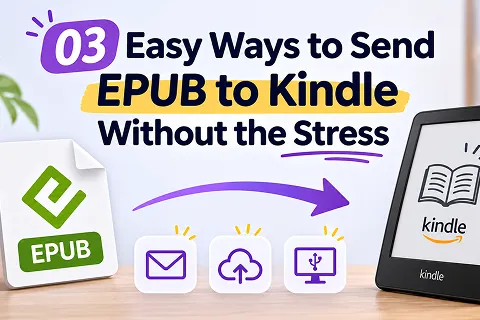
Your EPUB is done. Now you want to see it on a real Kindle screen. Maybe you are a first-time author checking your layout. Maybe